
Introducing AI Chat for Workshop
Ask questions about your fleet in natural language

Santa is one of the most capable endpoint security tools on macOS, but getting the most out of it has always required deep knowledge of its internals. Workshop was built to change that, and it gives you dashboards, filters, and reports for managing your fleet. AI Chat takes it a step further: just ask!
Press Cmd+J anywhere in Workshop, type “Why was Figma blocked on Maria’s laptop?”, and the AI will look up the host, find the block event, check the signing info, and tell you what happened. It’s the same data you’d find by clicking through the UI, delivered as a conversation. AI Chat is now available in beta for all Workshop customers.
What You Can Ask
AI Chat has access to Workshop’s full API surface, over 150 methods. That means it can answer questions across every area of the platform.
Hosts and fleet status. “How many hosts are in Lockdown mode?” or “Show me hosts running Santa versions older than 2026.1” or “Which hosts haven’t synced in the last 24 hours?”
Rules and policies. “Find all rules targeting the engineering tag” or “What rules apply to Google Chrome?” or “Show me all blocklist rules created this month.”
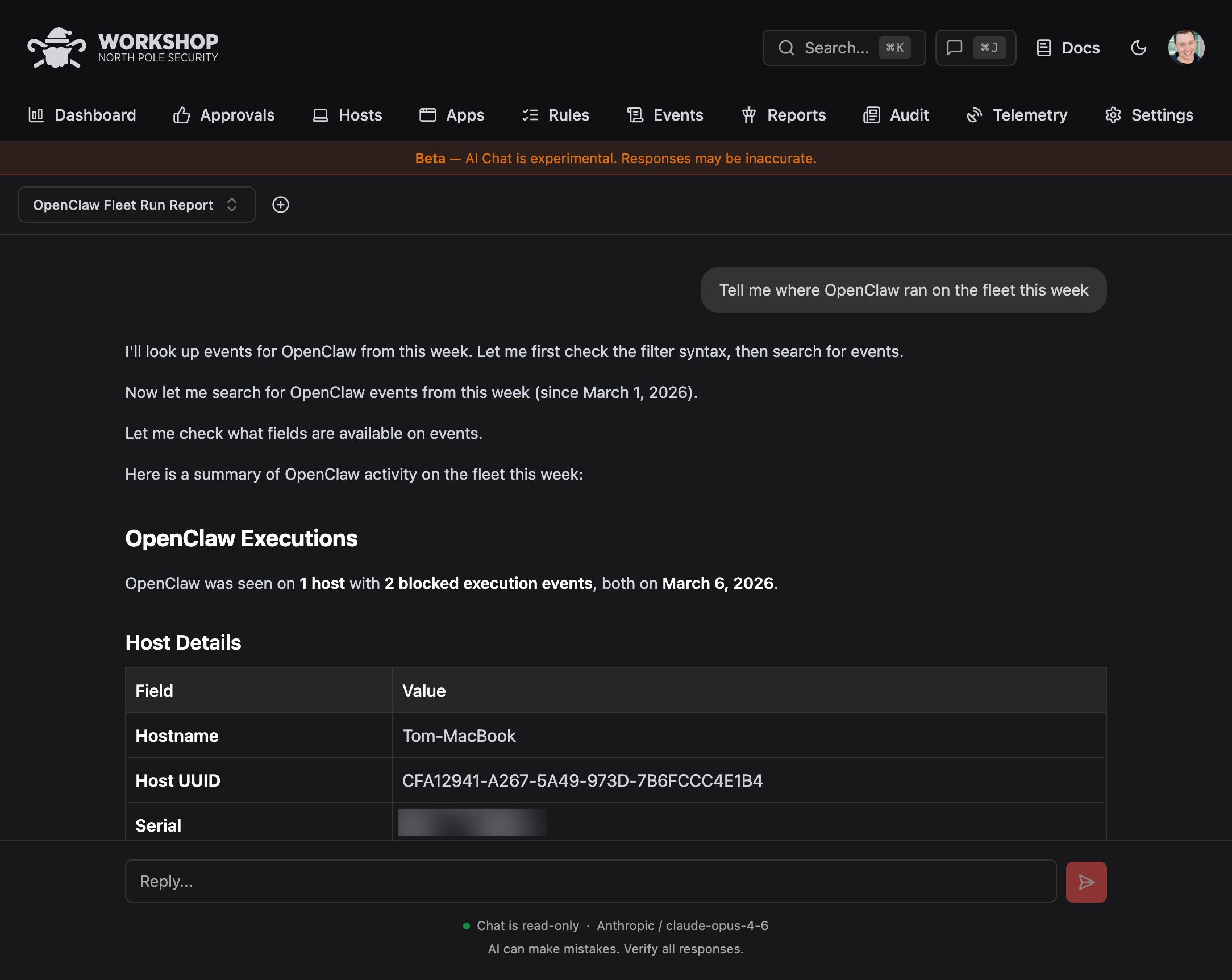
Events and telemetry. “What binaries were blocked on this host today?” or “Show me the most recent execution events for Slack” or “How many block events happened across the fleet this week?”
Configuration. “What sync settings are configured for the devops tag?” or “Is USB blocking enabled for the finance group?”
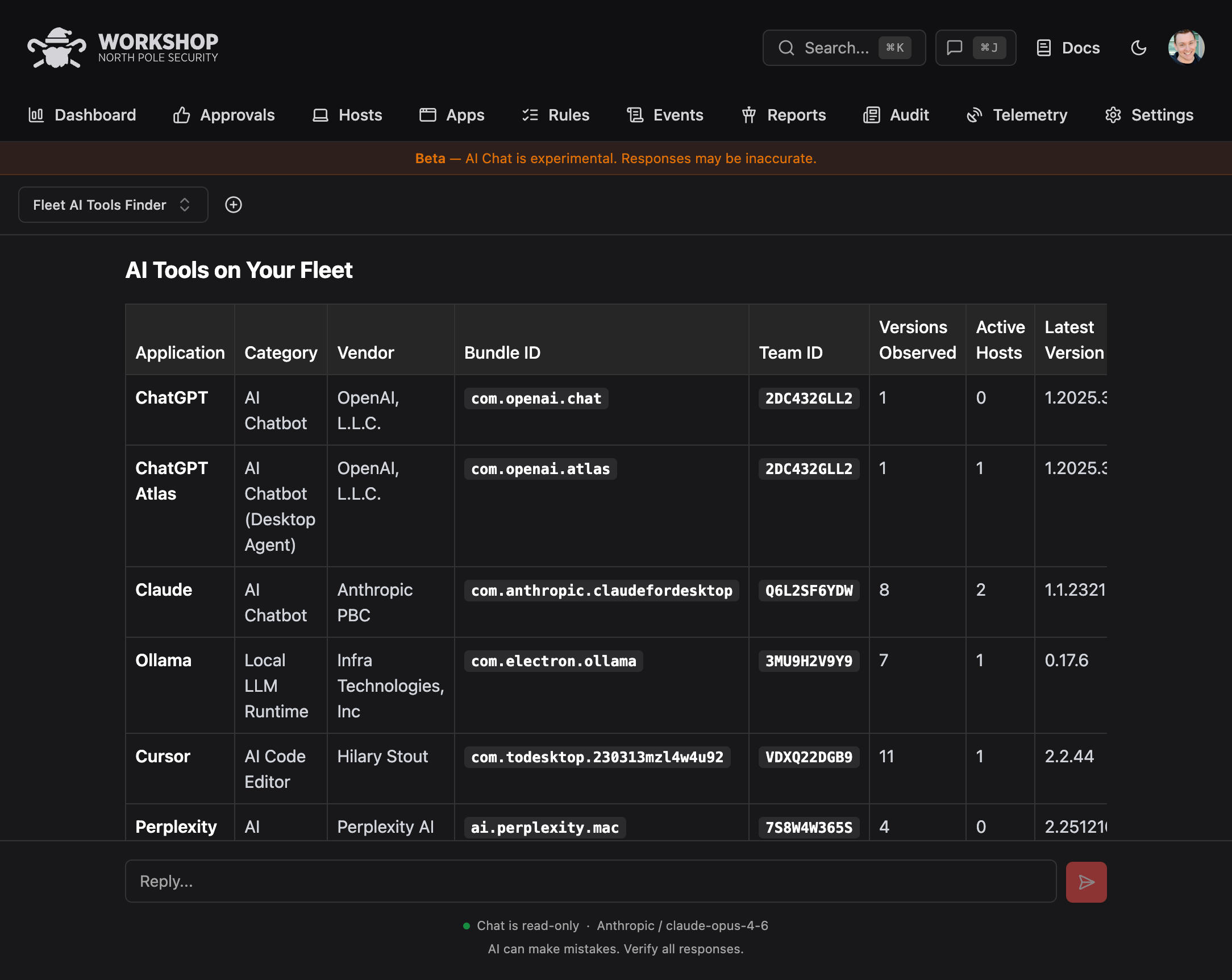
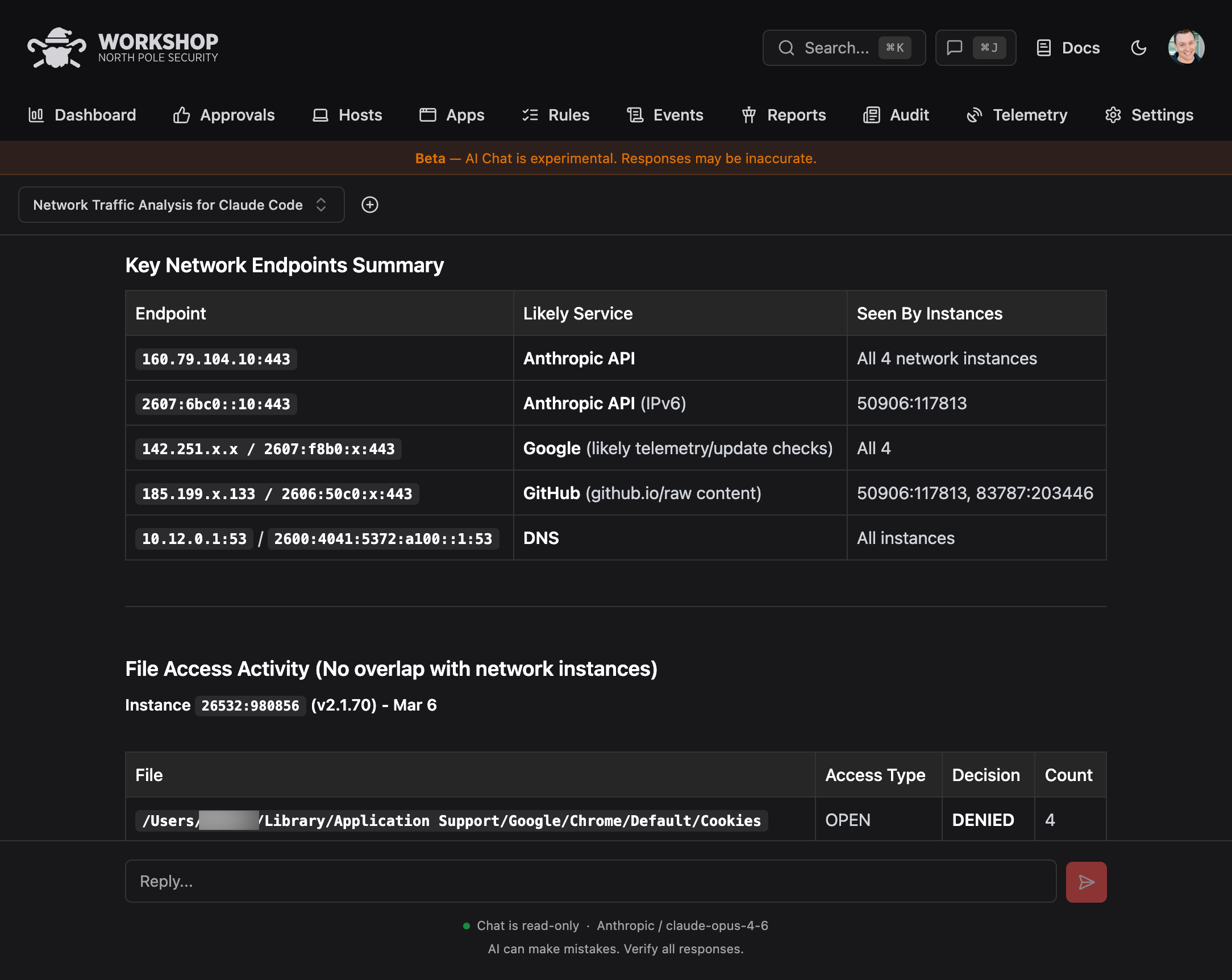
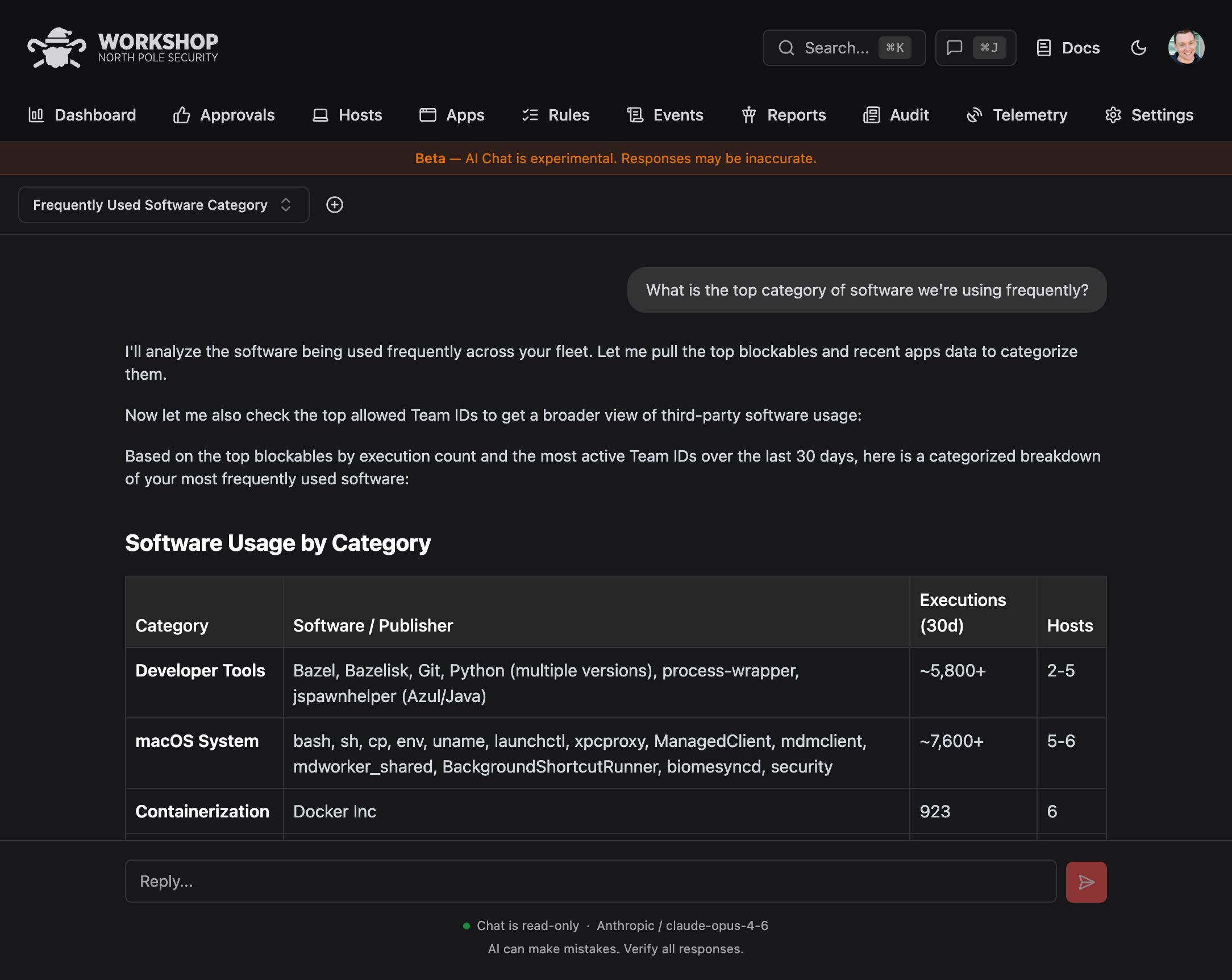
These are examples. If Workshop has an API for it, you can ask about it. And because the AI brings its own knowledge of software, vendors, and common tools, you can ask higher-level questions, too, like “What does this binary do?” or “Help me find all new developer tools across the fleet.”
How It Works
AI Chat runs an agentic loop on the Workshop backend. When you ask a question, the LLM examines Workshop’s available API methods, calls the ones it needs, reads the results, and either calls more methods or writes back with an answer. A single question might trigger a dozen API calls behind the scenes, but you just see the result.
Every API call runs as the currently logged-in user. If your Workshop role doesn’t have access to a feature, the AI can’t access it either. Tools are filtered based on your role before the LLM even sees them, and every tool call is validated again at execution time.
Some operations are always off-limits, regardless of your role. The AI can never create or delete API keys, manage multi-party approval settings, kill processes on hosts, or send commands directly to Santa agents. These actions are too consequential for anything other than direct human intent.
Read-Write Mode
By default, AI Chat operates in read-only mode. It can query anything you have access to but can’t change anything. This is the safe way to explore. Ask questions, dig into events, check configurations, all without risk.
For admins who want to go further, there’s an optional read-write mode that allows the AI to create rules, modify settings, and perform other write operations on your behalf. You could say “Create an allowlist rule for Homebrew’s wget on the engineering tag” and the AI will do it.
Read-write mode is off by default and requires explicit confirmation to enable. Every write action still goes through Workshop’s standard permission checks and audit logging, so there’s a full trail of what the AI did and who asked for it.
Bring Your Own Key
AI Chat uses a bring-your-own-key model. You provide an API key from Anthropic, OpenAI, or Google in Workshop’s settings. Your data stays between Workshop and the LLM provider you choose. North Pole Security never sees your API key or the contents of your conversations.
You can use whichever provider your organization already has a relationship with. Swap models at any time from the settings page.
Built-in Documentation
Not sure how a feature works? AI Chat also has access to Workshop’s full documentation. Ask “How do I set up SCIM?” or “What’s the difference between Monitor and Lockdown mode?” and get an answer without opening a new tab.
This is especially useful for teams onboarding new admins. Instead of sending someone a link to the docs and hoping they find the right page, point them at Cmd+J.
Getting Started
AI Chat is available in beta for all Workshop customers. Open Workshop, press Cmd+J, and start asking questions. You’ll need to add an API key in Settings → AI Chat first.
We’re actively developing AI Chat based on customer feedback during the beta. If you have ideas for what the AI should be able to do, we want to hear them.
If you’re not yet a Workshop customer, contact us to see AI Chat and the rest of the platform in action.
You may also like

Telemetry, Rebuilt
Export Santa’s incredible telemetry stream to Workshop and query it directly from the Workshop UI using regular SQL.
Announcing Touch ID for Santa
Santa now supports Touch ID verification before execution, so CEL rules can require a biometric check for sensitive operations like remote debugging.

EDR Freeze on macOS
EDR Freeze came to Windows via debugging tricks. macOS has its own version using pid_suspend, and one subscription call stops it